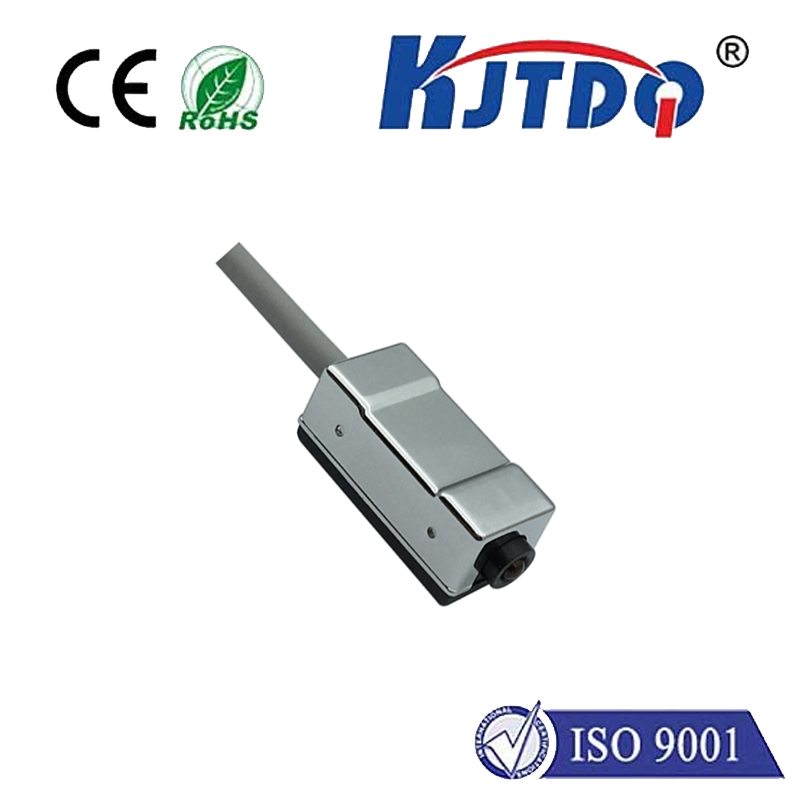
In the world of automation and DIY electronics, integrating a limit switch with an Arduino microcontroller opens up a realm of possibilities for precise control and safety in projects ranging from 3D printers to custom CNC machines. A limit switch is a simple electromechanical device that detects the presence or absence of an object, or its movement to a specific position. When connected to an Arduino, it acts as a digital input, sending a signal to halt or change a motor's direction, preventing over-travel and potential damage. This guide provides a clear, step-by-step approach to this fundamental connection, ensuring reliable operation for your builds.
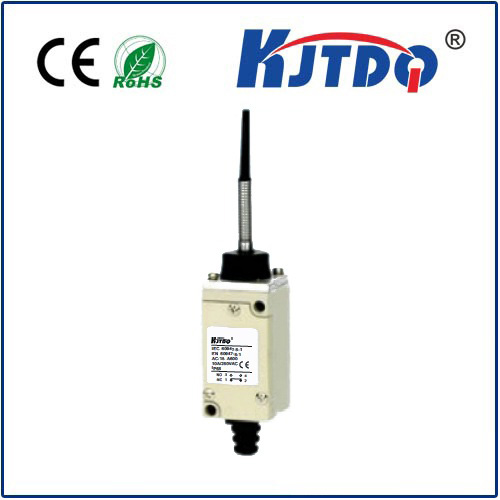
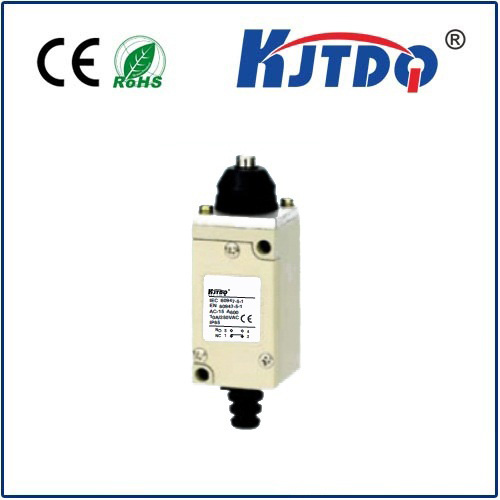
The first step is understanding the components. A typical limit switch has three terminals: Common (COM), Normally Open (NO), and Normally Closed (NC). For basic detection, we often use the NO or NC configuration in conjunction with the COM terminal. The Arduino board, such as the ubiquitous Uno, will read the state of this switch through one of its digital input pins. You will also need a breadboard, jumper wires, and a pull-up or pull-down resistor (typically 10k ohms) to ensure a stable, defined logic state when the switch is open. The resistor prevents the input pin from floating and picking up random electrical noise, which could cause erratic behavior.
Let's walk through the wiring for a common setup using the Arduino's internal pull-up resistor. Connect one terminal of the limit switch (e.g., COM) to the Arduino's GND pin. Connect the other terminal used (e.g., NO) to the chosen digital input pin, for instance, pin 2. That's it for the basic circuit. We then activate the microcontroller's internal pull-up resistor via code. This internal resistor weakly pulls the pin to HIGH (5V) when the switch is open. When the switch is activated (pressed), it creates a connection to GND, pulling the pin's voltage to LOW (0V). The Arduino detects this change from HIGH to LOW as a trigger event.
The code to read the switch is straightforward. In thesetup() function, you initialize the serial communication for monitoring and set the limit switch pin (e.g., pin 2) as anINPUT_PULLUP. This command enables the internal pull-up resistor. In theloop() function, you continuously read the state of the pin usingdigitalRead(). When the switch is not pressed, the read value will be HIGH. When pressed, it becomes LOW. You can then use anif statement to execute an action, such as stopping a motor or printing a message to the serial monitor. For example:if(digitalRead(switchPin) == LOW) { Serial.println("Limit reached!"); // Add control code here }.
For enhanced reliability in noisy environments or with long wires, an external pull-down resistor circuit is an excellent alternative. In this configuration, connect the switch's COM terminal to the Arduino's 5V pin. Connect the other terminal (NO) to the digital input pin (e.g., pin 2). Then, connect a 10k ohm resistor between the same input pin and GND. This resistor pulls the pin to LOW when the switch is open. When the switch closes, 5V is applied to the pin, reading as HIGH. The logic in your code would then be inverted, looking for a HIGH signal to indicate activation.
Practical application is key. In a linear actuator project, you might place limit switches at both ends of travel. The Arduino sketch would monitor both switches. Upon detecting activation from the "forward" limit switch, it would cut power or reverse the motor direction, effectively homing the actuator. This prevents the motor from straining against a mechanical stop, protecting gears and motors. Debouncing the switch signal in software is often necessary, as mechanical switches can produce a rapid series of makes and breaks upon contact. A simple delay or a more robust debouncing library can filter these out for a clean, single reading.
Troubleshooting common issues involves methodical checking. If the Arduino doesn't respond to the switch, first verify all connections with a multimeter. Ensure the correct pin mode (INPUT_PULLUP orINPUT with an external resistor) is declared in your code. Check the serial monitor for unexpected readings, which might indicate a floating pin due to a missing resistor. Remember, when usingINPUT_PULLUP, the logic is active-LOW. Forgetting this inversion is a frequent source of confusion. Always test the switch's mechanical action separately to confirm it clicks and makes proper contact.
Mastering the connection between a limit switch and Arduino is a cornerstone skill. It translates abstract code into tangible, physical interaction, enabling machines to understand their boundaries. This simple interface forms the backbone of safety and precision in countless automated systems. By following these wiring principles and coding practices, you ensure your project operates within its intended physical limits, leading to more robust and professional results. Start with a simple breadboard test, then integrate this reliable sensing solution into your next robotic arm, automated drawer, or interactive installation.